If you would like to downgrade your subscription in EventBookings, you can do so easily through your organizer dashboard. Follow the steps below:
Step 1: Go to Your Organizer Dashboard
Log in to your EventBookings account and navigate to your Organizer Dashboard.
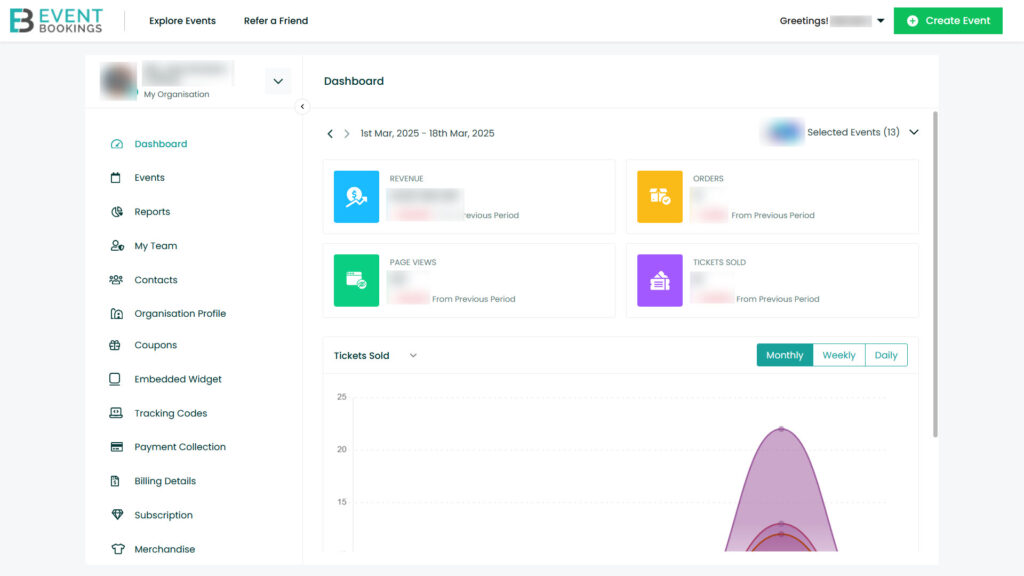
Step 2: Click on Subscription
From the dashboard menu, select Subscription to view your current plan and available options.

Step 3: Choose the Package You Want to Switch To
Click on the package you’d like to downgrade or shift to.
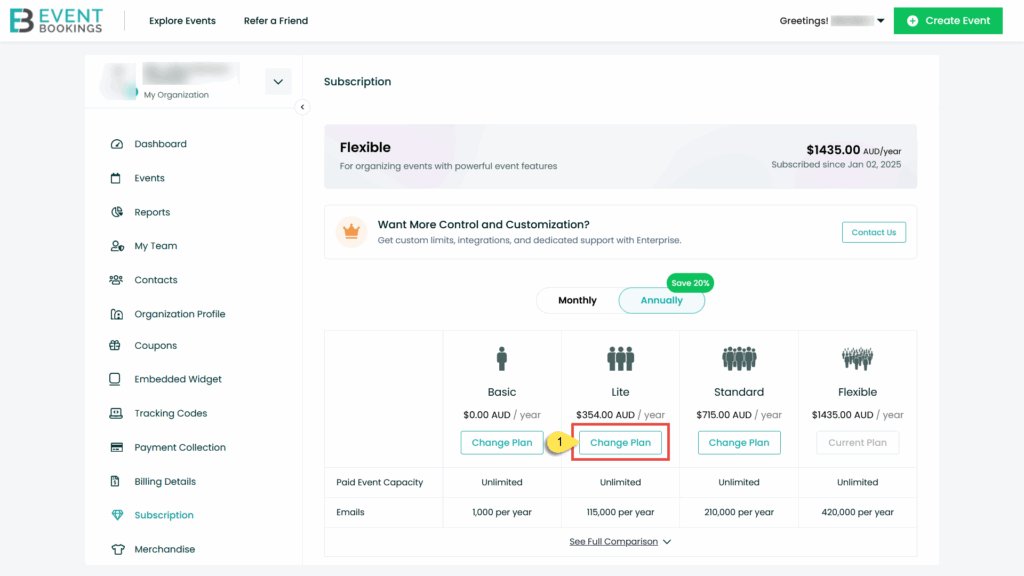
Step 4: Fill Out the Feedback Form
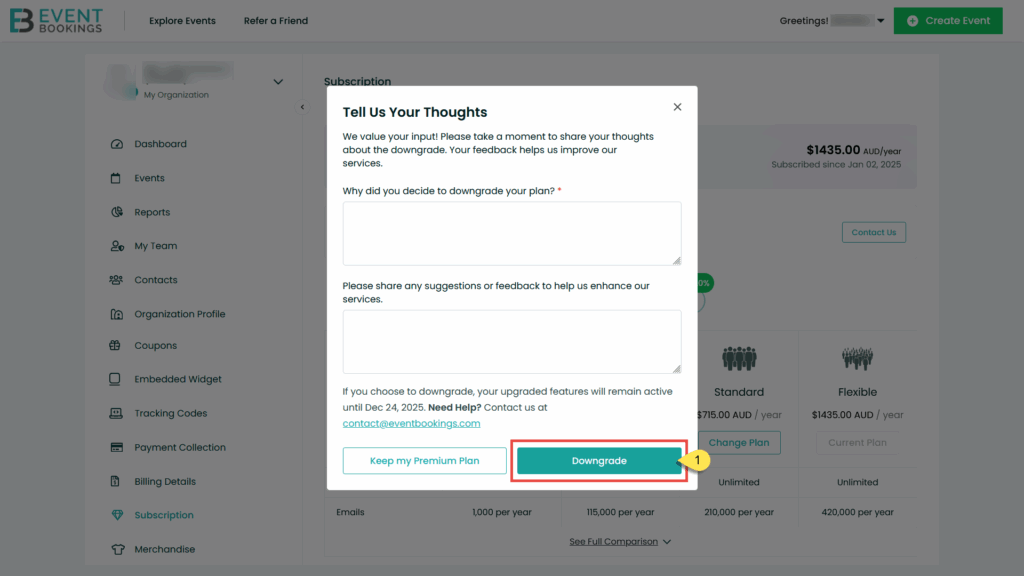
A pop-up will appear asking for quick feedback. You’ll see two questions:
- Why did you decide to downgrade your plan?
- Please share any suggestions or feedback to help us enhance our services.
Providing feedback is optional, but it helps us improve your experience.

Step 5: Confirm Downgrade
If you choose to downgrade, your upgraded features will remain active until the following day.
Click the Downgrade button to complete the process.
2. How to Cancel Your Subscription in EventBookings
To cancel your subscription, follow the steps below:
Step 1: Access Your Organiser Dashboard
Log in to your EventBookings account and go to your Organizer Dashboard.
Step 2: Go to Subscription
Click on Subscription from the dashboard menu.
Step 3: Switch to the Basic Plan
Click the Change Plan button under the Basic Plan.
At the end of your current billing cycle:
- Your subscription will not renew
- Your account will automatically revert to the Basic (free) plan
Step 4: Complete the Feedback Form
A pop-up will appear with the following questions:
- Why did you decide to downgrade your plan?
- Do you have any suggestions to help us improve?
Providing feedback is optional.
Step 5: Confirm Downgrade
Click the Downgrade button to finalise the cancellation.
Your current features will remain active until the following day.
3. How to Cancel Add-Ons in EventBookings
If you would like to cancel an add-on, follow these steps:
Step 1: Access Your Organiser Dashboard
Log in and navigate to your Organizer Dashboard.
Step 2: Go to Subscription
Click on Subscription to view your active add-ons.
Step 3: Manage the Add-On
Click the Manage button next to the add-on you wish to cancel.
In the pop-up window, click Cancel Plan.
Step 4: Complete the Feedback Form
You will be asked:
- Why did you decide to cancel your plan?
- Do you have any suggestions to help us improve?
Providing feedback is optional.
Step 5: Confirm Cancellation
Click Cancel Now to complete the process.
The add-on will remain active until the following day.
Note
The Email Pack add-on is a one-time purchase.
- It does not renew automatically
- There is no option to cancel it after purchase
 Czech Republic
  Australia
  United States
  United Kingdom
  New Zealand
  Canada
  Ireland
  Argentina
  Austria
  Bangladesh
  Belgium
  Brazil
  Bulgaria
  China
China  Croatia
  Cyprus
  Denmark
  Egypt
Egypt  Estonia
  Fiji
Fiji  Finland
  France
  Germany
  Gibraltar
  Greece
  Hong Kong
  Hungary
  India
India  Indonesia
  Italy
Italy  Japan
Japan  Jordan
  Latvia
  Liechtenstein
  Lithuania
  Malaysia
  Malta
Malta  Mexico
  Netherlands
  Norway
  Philippines
  Poland
  Portugal
  Qatar
Qatar  Romania
  Saudi Arabia
  Singapore
  Slovakia
  Slovenia
  South Africa
  South Korea
  Spain
Spain  Sweden
  Switzerland
  Taiwan
  Thailand
  United Arab Emirates